While roasting, it can be helpful to display a roast curve as an underlay. This will give you a template to follow when roasting your next batch.
Previously saved Roast Profiles can be set as underlays on the Roast Chart to use as a reference while roasting. You can also choose to use a Path from your Path Library as a roast reference underlay.
To select a profile to underlay, click the Underlay Icon in the upper right of the Roast Screen. Then click the '+' icon under Reference Display Settings. This will open the Select a Reference pop-up. Choose from the Profiles or Paths using the tabs at the top of the lists. Click the Path or Profile you wish to underlay then click SET in the lower right of the Reference Select pop-up. Filters can be applied to your selection to restrict both lists to a specific coffee or machine.
Once a reference has been selected, the data displayed can be customized in the Reference Display Settings.
How to Select a Reference or Underlay:
1. Click Roast

2. Click the Underlay Icon

3. Click the Plus Sign

4. Click on Profiles if the Reference is a Profile
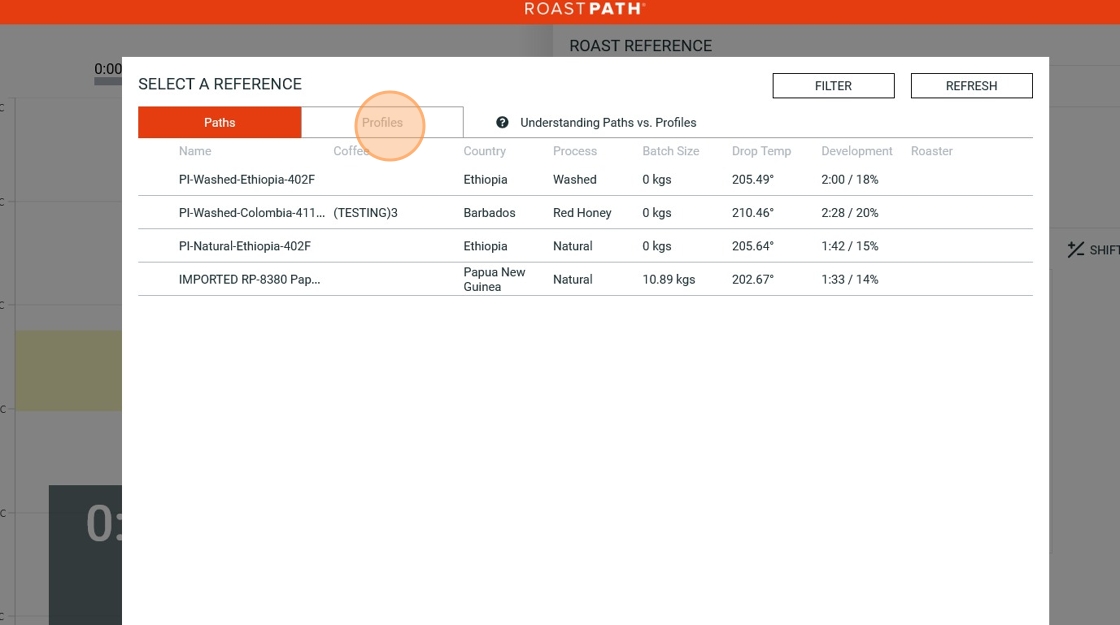
5. To Filter the list of Profiles or Paths Click "FILTER"

6. Filter the list by your chosen criteria
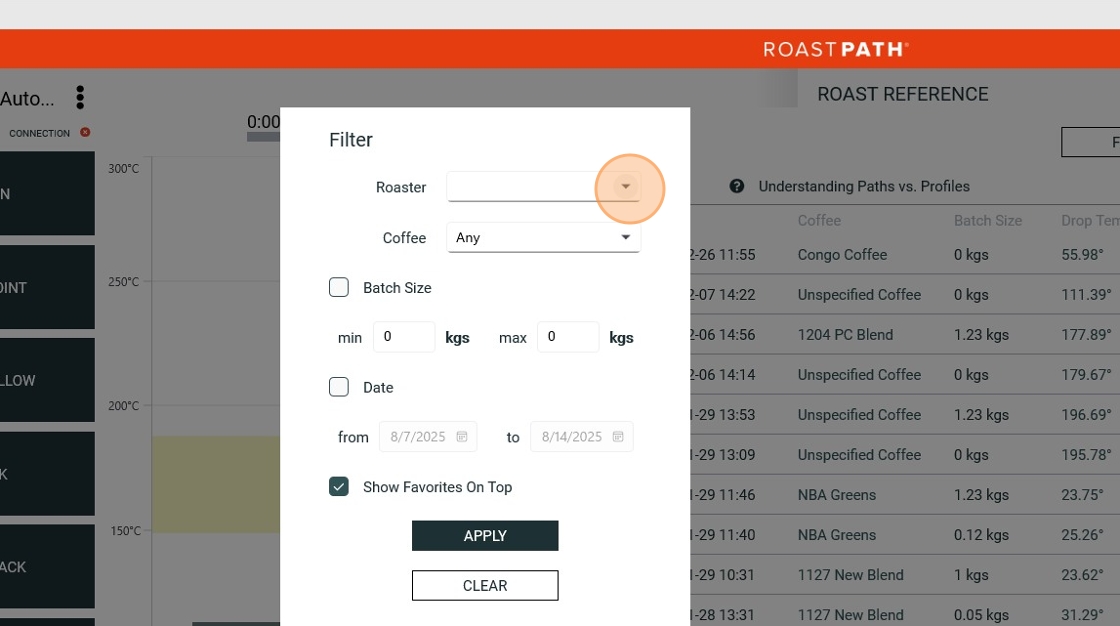
7. I chose to filter by Roaster

8. Click Apply

9. Select the Profile to Underlay

10. Click Set

11. Click the Underlay Icon to close

Comments
0 comments
Please sign in to leave a comment.